Import or Restore a Wallet

To import/restore an existing wallet, simply follow these steps:

  1. Accept the Terms of Service and Privacy Policy
  2. Tap “Import existing wallet"
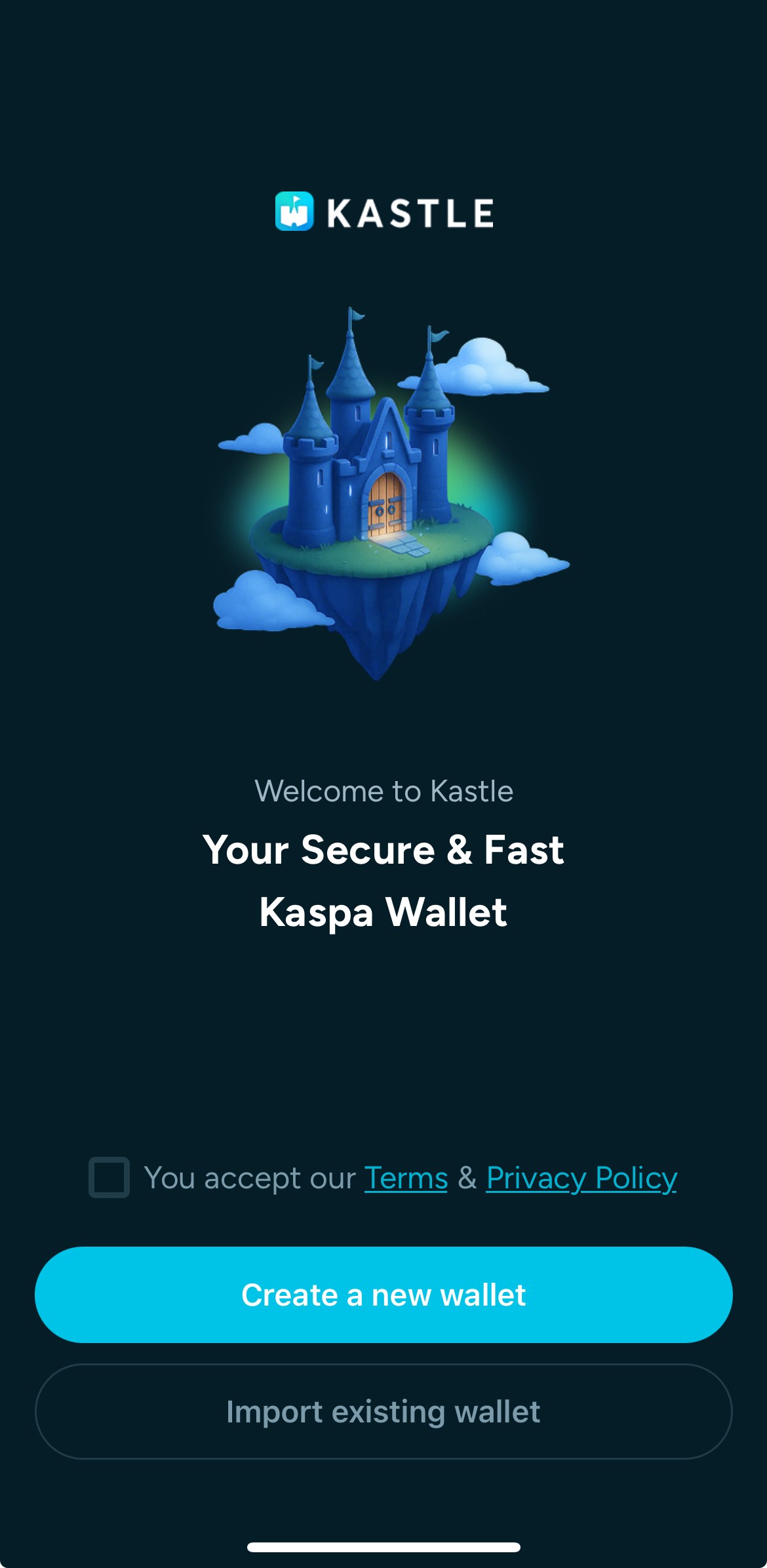
The wallet setup screen shows an Accept Terms checkbox and the Create a new wallet button. The user checks the box and starts a new wallet.
  1. Set up your PIN code for security
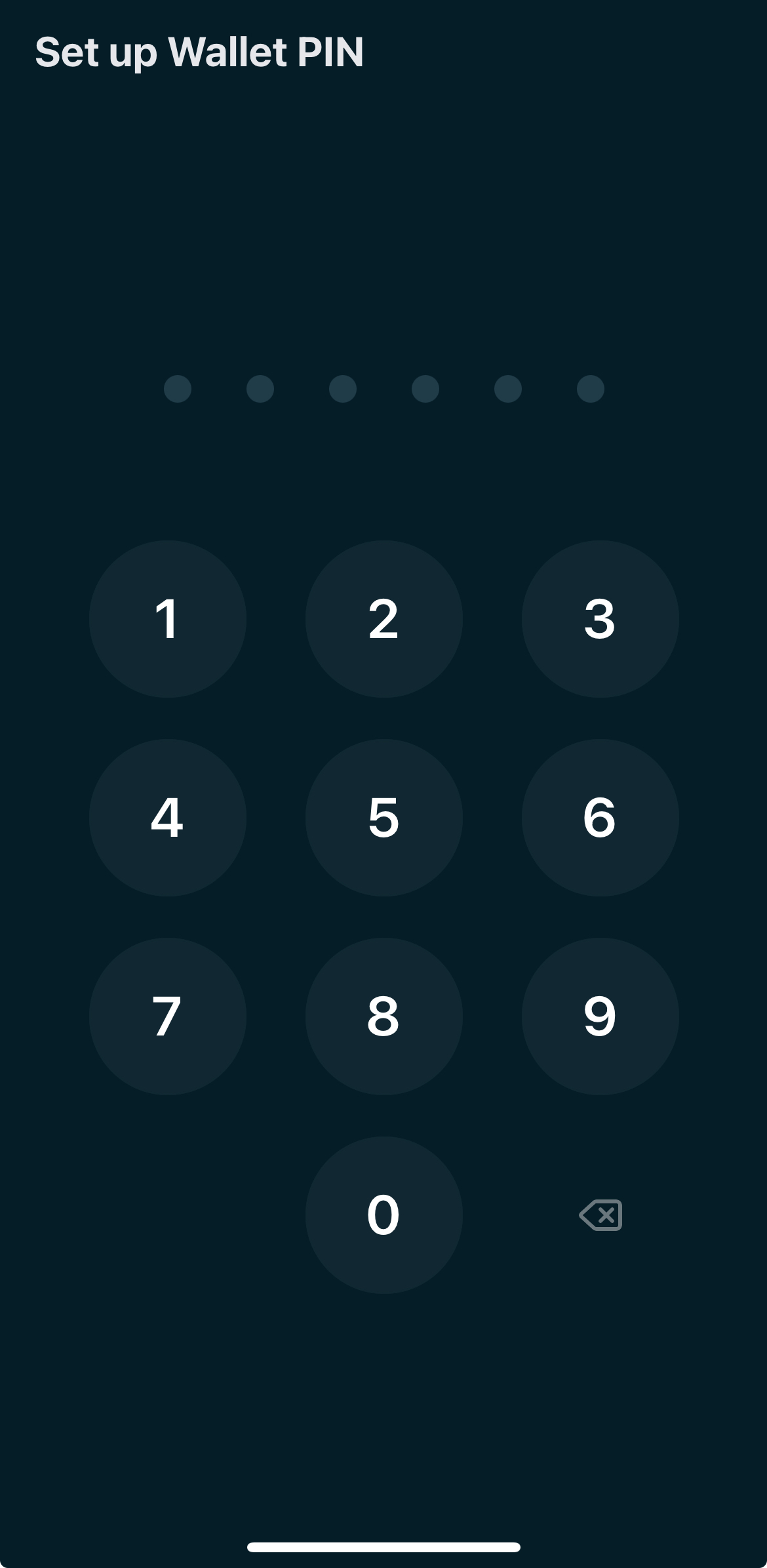
The import flow Set PIN step shows the numeric keypad with the Confirm PIN field focused. The user sets an unlock PIN to continue the recovery.
  1. Choose whether to enable Face ID or biometric authentication
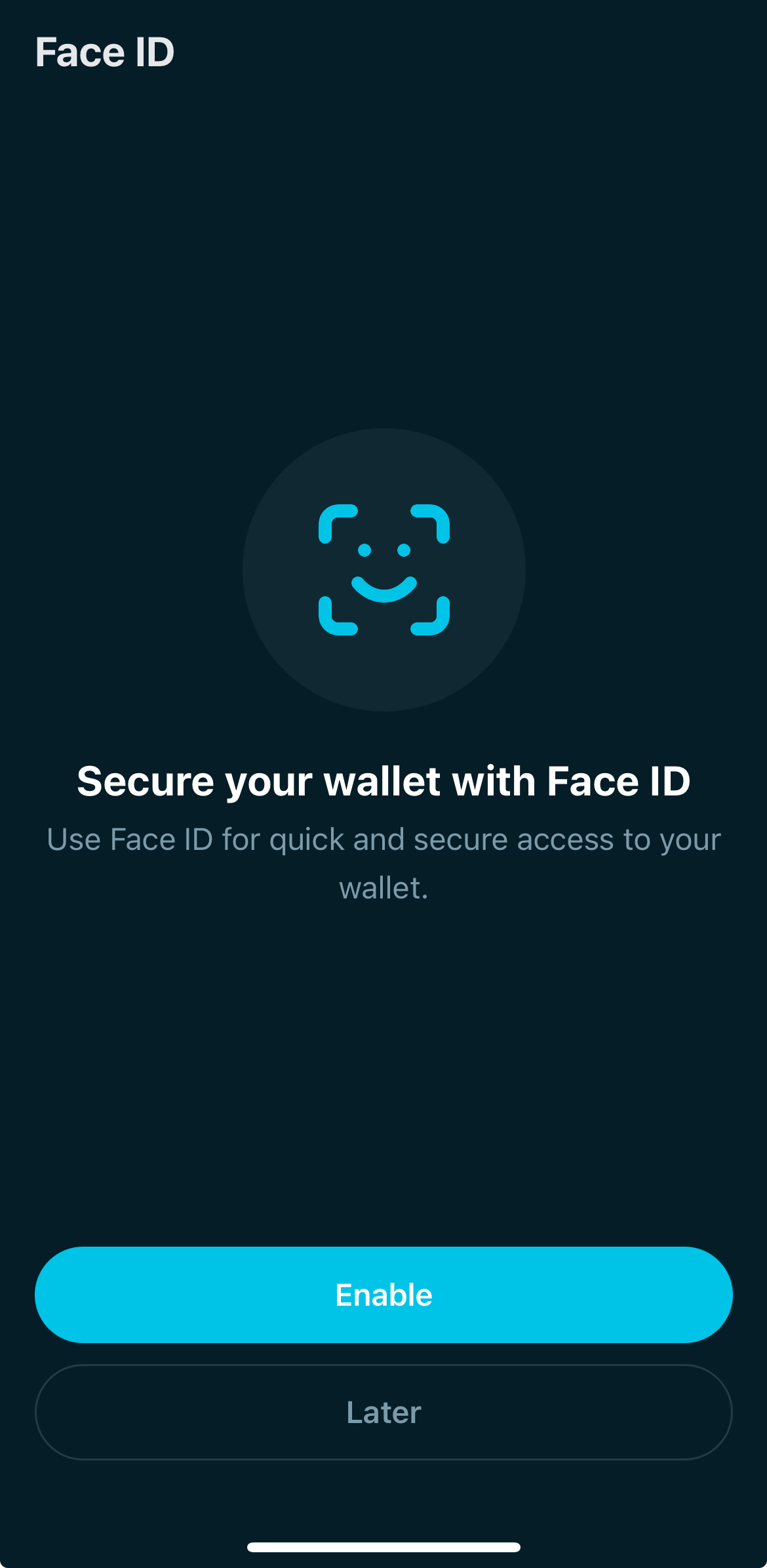
The biometric setup step for recovery shows enable or skip options. The user chooses whether to use biometrics.
  1. Choose the method to import the wallet with
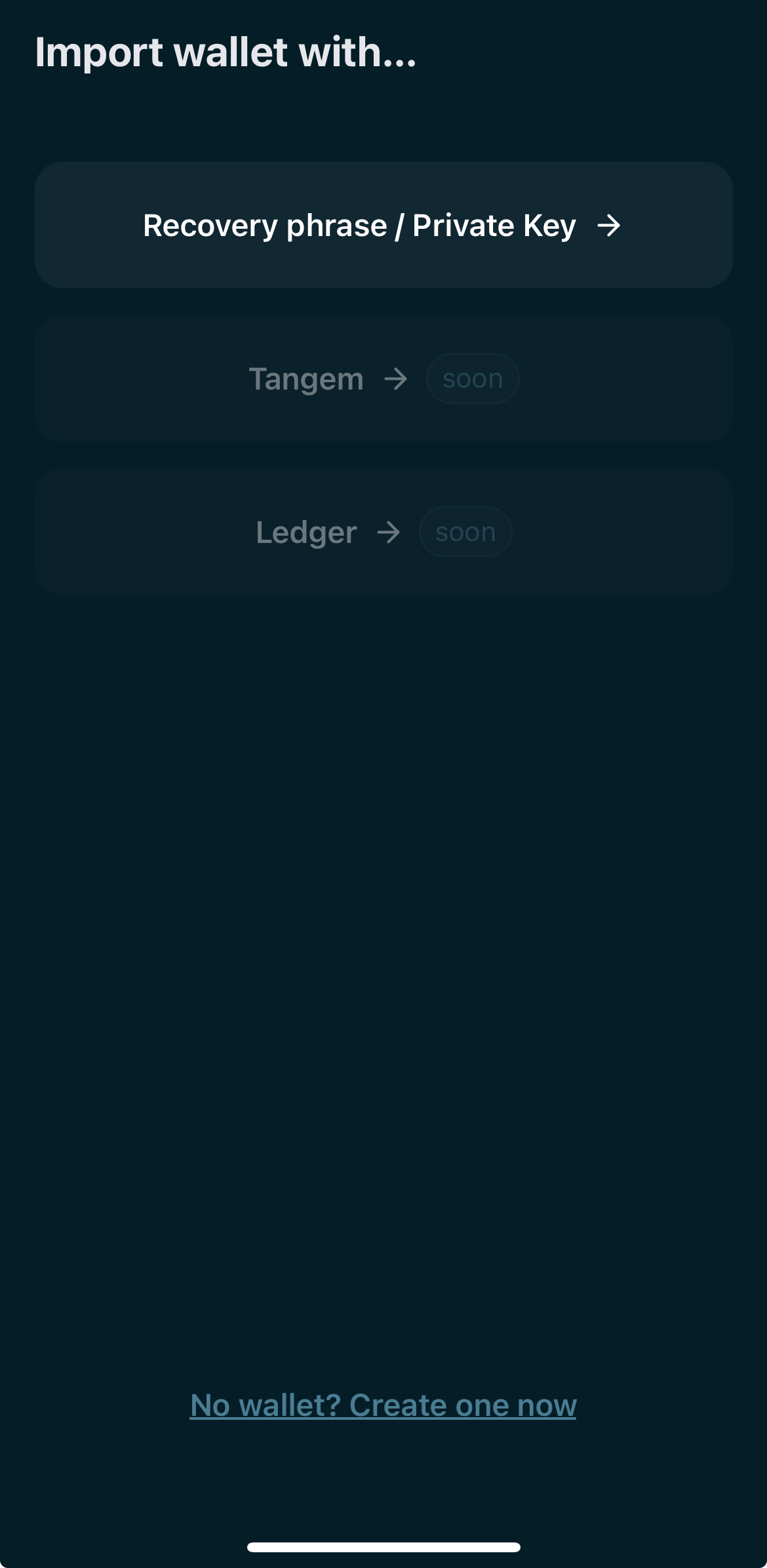
The recovery method screen shows options for a recovery phrase and a private key. The user selects how to recover an existing wallet.
  1. Type or paste the secret recovery phrase or private key
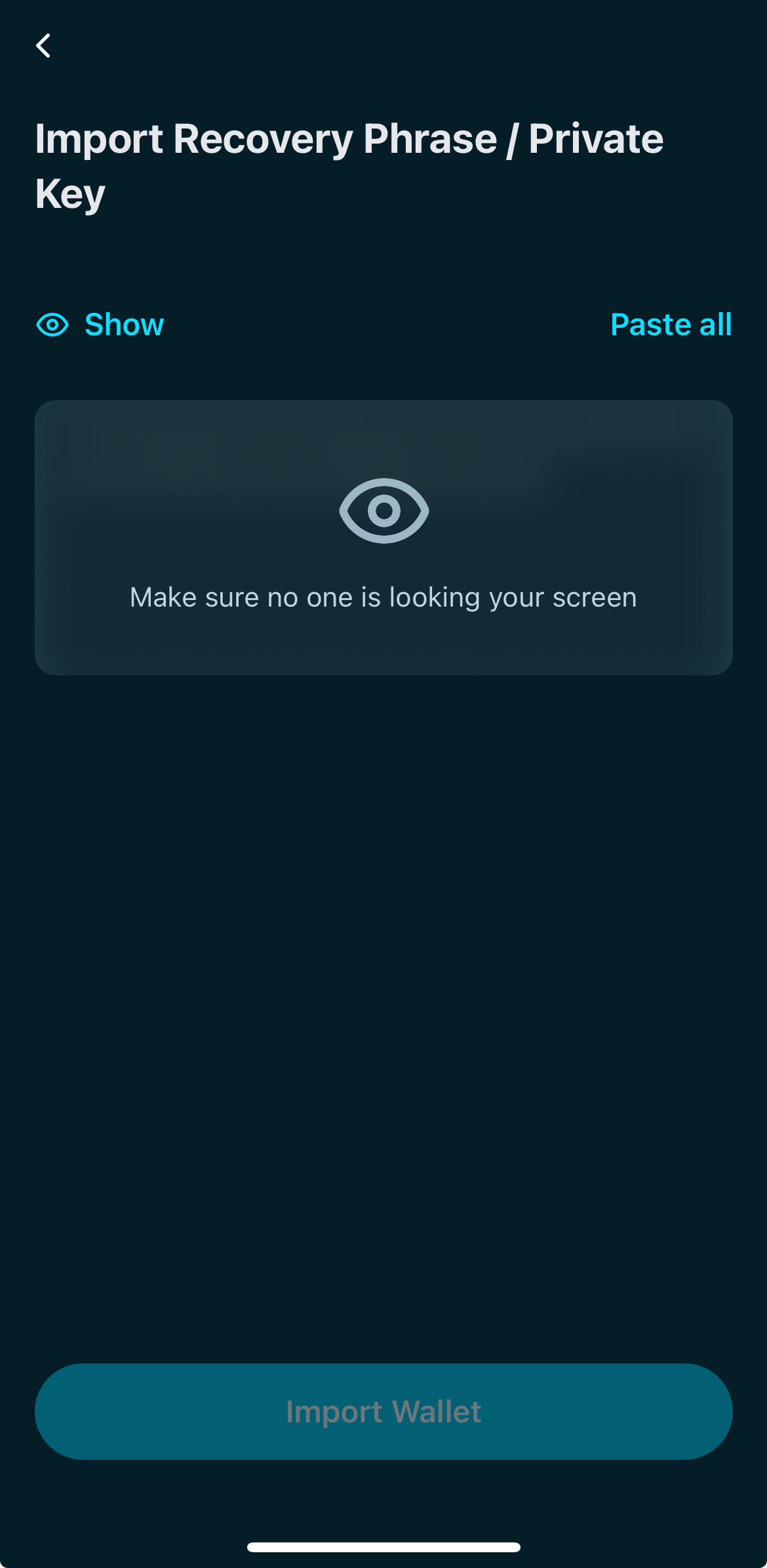
The recovery screen shows an input for a recovery phrase or a private key with a Continue action. The user enters credentials to proceed.
  1. And that’s it — your wallet is ready to use!
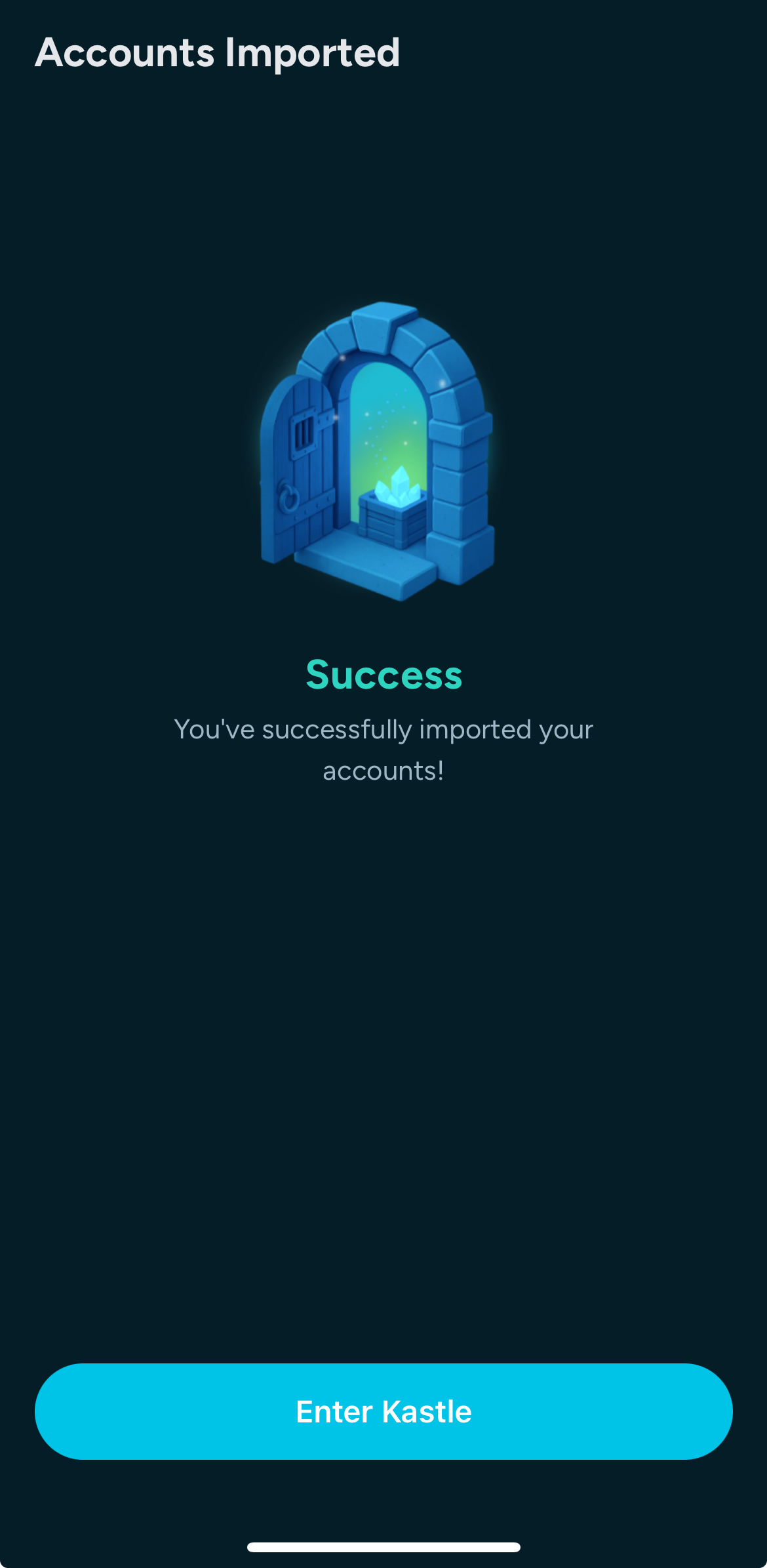
The wallet recovery success screen confirms the wallet is ready to use. The user can return to the app.
Kastle Telegram support button – opens @kastlewallet chat
Kastle official X (Twitter) account – opens @kastlewallet
Kastle GitHub repository
Kastle Medium publication – read latest updates

Import or Restore a Wallet

To import/restore an existing wallet, simply follow these steps:

  1. Accept the Terms of Service and Privacy Policy
  2. Tap “Import existing wallet"
The wallet setup screen shows an Accept Terms checkbox and the Create a new wallet button. The user checks the box and starts a new wallet.
  1. Set up your PIN code for security
The import flow Set PIN step shows the numeric keypad with the Confirm PIN field focused. The user sets an unlock PIN to continue the recovery.
  1. Choose whether to enable Face ID or biometric authentication
The biometric setup step for recovery shows enable or skip options. The user chooses whether to use biometrics.
  1. Choose the method to import the wallet with
The recovery method screen shows options for a recovery phrase and a private key. The user selects how to recover an existing wallet.
  1. Type or paste the secret recovery phrase or private key
The recovery screen shows an input for a recovery phrase or a private key with a Continue action. The user enters credentials to proceed.
  1. And that’s it — your wallet is ready to use!
The wallet recovery success screen confirms the wallet is ready to use. The user can return to the app.
Kastle Telegram support button – opens @kastlewallet chat
Kastle official X (Twitter) account – opens @kastlewallet
Kastle GitHub repository
Kastle Medium publication – read latest updates

Import or Restore a Wallet

To import/restore an existing wallet, simply follow these steps:

  1. Accept the Terms of Service and Privacy Policy
  2. Tap “Import existing wallet"
The wallet setup screen shows an Accept Terms checkbox and the Create a new wallet button. The user checks the box and starts a new wallet.
  1. Set up your PIN code for security
The import flow Set PIN step shows the numeric keypad with the Confirm PIN field focused. The user sets an unlock PIN to continue the recovery.
  1. Choose whether to enable Face ID or biometric authentication
The biometric setup step for recovery shows enable or skip options. The user chooses whether to use biometrics.
  1. Choose the method to import the wallet with
The recovery method screen shows options for a recovery phrase and a private key. The user selects how to recover an existing wallet.
  1. Type or paste the secret recovery phrase or private key
The recovery screen shows an input for a recovery phrase or a private key with a Continue action. The user enters credentials to proceed.
  1. And that’s it — your wallet is ready to use!
The wallet recovery success screen confirms the wallet is ready to use. The user can return to the app.